These numbers were checked on 10 November 2026 against Wargaming's player support page and the Steam store page for the game. New to the game? After installing, read the beginner guide and the rest of the World of Tanks hub.
Official minimum and recommended requirements
Wargaming updated the requirements with Update 2.3.1 in summer 2026. Its support page says that if your PC met the previous minimum, you can still launch and play, but Wargaming no longer guarantees stability or performance below the new minimum. All supported Windows versions must be kept up to date.
| Part | Minimum | Recommended |
|---|---|---|
| Operating system | Windows 10 / 11, 64 bit only | Windows 10 / 11, 64 bit only |
| Processor | Intel Core i5-3330 or AMD FX-6300 | Intel Core i3-9100F or AMD Ryzen 3 3100 |
| Memory | 8 GB RAM | 16 GB RAM or more |
| Graphics card | Nvidia GTX 660 or AMD Radeon R9 270, 1280x768 resolution | Nvidia GTX 1650 or AMD Radeon RX 580 |
| DirectX | Version 11 (Steam listing) | Version 11 (Steam listing) |
| Disk space | About 70 GB (Wargaming) / 120 GB (Steam) | About 120 GB |
| Internet | 256 Kbps (Wargaming) / broadband (Steam) | 1 Mbps or more for voice chat |
Processor, memory and graphics card are identical on both official sources. The only differences are disk space and network: Wargaming's support page lists about 70 GB for the minimum and about 120 GB for the recommended setup, while Steam lists 120 GB for both. Plan for 120 GB so updates always have room to unpack.
Disk space and SSD
Neither official listing requires an SSD, so a hard drive works; it simply loads slower. Wargaming notes that the FAT32 file system is not supported, which matters if you try to install onto an old external drive.
If the Game Center reports "Insufficient disk space", Wargaming's advice is the Windows Disk Cleanup tool: temporary files, the recycle bin, old restore points and programs you no longer use. Do it before a big update, not during one.
World of Tanks on Mac
There is no native macOS client. Wargaming's support page says plainly that the official client is not being developed or supported for macOS, and the Steam version is Windows only. Wargaming lists two workarounds:
- Apple Silicon Macs (M1 and newer): the CodeWeavers Mac Wrapper, a compatibility layer based on CrossOver and supported by CodeWeavers and Wargaming. You install it, drag World of Tanks into Applications, and the Wargaming Game Center inside it installs the game. Wargaming's own support cannot help with problems in the wrapper, and performance depends on your Mac.
- Intel Macs: cloud gaming through GeForce NOW (NA, EU and Asia) or Boosteroid (NA and EU). The game runs on a remote server and streams to your Mac. You log in with your Wargaming.net account. Boosteroid is a paid service.
Best settings for a low end PC
Everything below comes from Wargaming's own support articles on graphics settings and FPS drops. The game has six presets: Minimum, Low, Medium, High, Maximum and Ultra. On first launch it runs an automatic detection and picks one for you; the Recommended button in the Graphics settings runs that detection again.
- Start from Recommended, then drop one preset. Wargaming says going down one preset (for example from High to Medium) gives a substantial improvement.
- Lower the expensive settings first. Wargaming names Antialiasing, Texture Quality, Object LOD, Draw Distance, Lighting and Post Processing as the demanding ones.
- Mind your video memory. Texture Quality and Decal Quality do not depend much on GPU speed but use a lot of video memory. On older cards, keep them low.
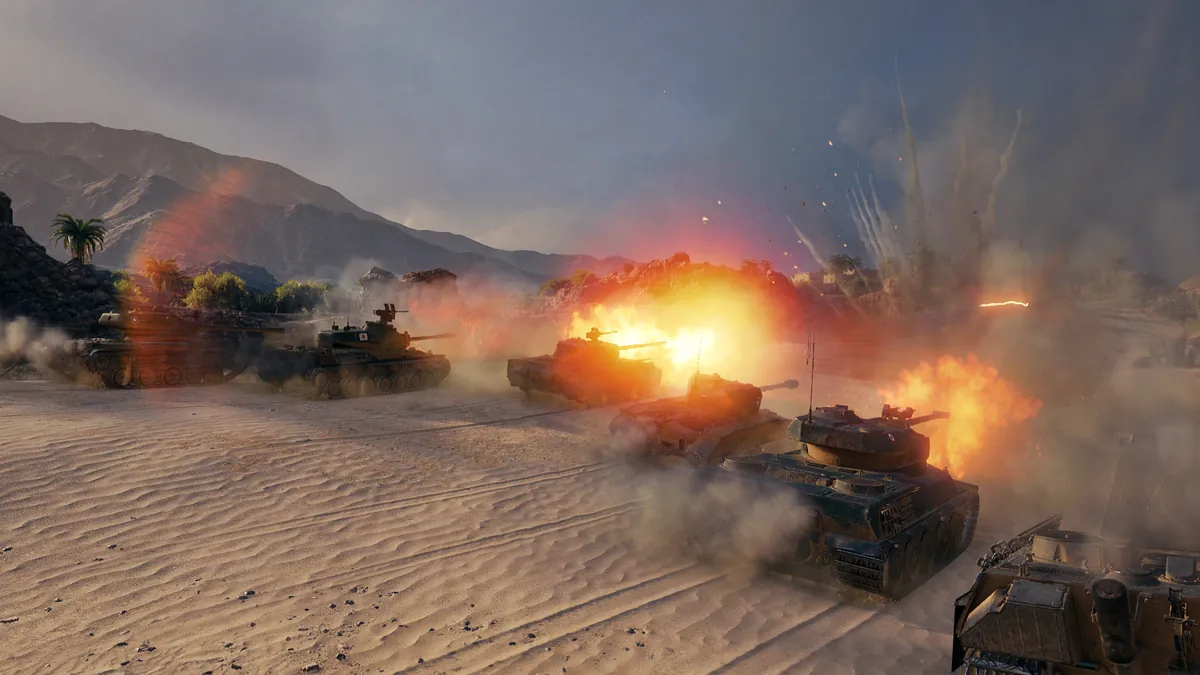
- Turn down Additional Effects if your CPU is weak. Smoke, dust, sparks, flames and explosions depend more on the processor than the graphics card.
- Lower Water and Lighting quality. Both cost GPU power and exist only in Improved graphics.
- Switch to Standard graphics only as a last step. Wargaming recommends trying the manual settings first and moving from Improved to Standard only if performance is still poor.
Two settings are about seeing, not frame rate, and you should leave them alone: keep your resolution native if you can, and do not turn off the minimap view range circles. They help you play better no matter what your PC is.
FPS fixes outside the game settings
- Update your graphics driver. Wargaming calls this very important and says it significantly affects performance. Get drivers from Nvidia, AMD or Intel directly.
- Use the right graphics card on laptops. Many laptops have an integrated and a dedicated GPU. If Windows runs the game on the integrated one, your FPS collapses. Set the game to use the dedicated card.
- Launch without mods. Mods very often reduce FPS. In the Game Center, click the arrow next to Play and choose safe mode to test without them.
- Disable Nvidia SLI. The game no longer supports SLI, and Wargaming says it can cause FPS drops.
- Check temperatures. If nothing helps, Wargaming suggests testing the GPU and CPU for overheating before you contact support.
Which upgrade helps most
If your PC sits between the two columns, look at what is actually short. The requirements tell you a lot here:
- Memory first. The jump from 8 GB to 16 GB is the cheapest upgrade on the list and the one the recommended spec doubles. With 8 GB, close the browser and voice apps you do not need before a session.
- Graphics card second. The recommended cards (GTX 1650, RX 580) are both a big step over the minimum GTX 660 and R9 270. If you have to keep the CPU, a card at that level lets you run Improved graphics at a sensible preset.
- Processor last, unless it is very old. The minimum is still a quad core from 2012 (i5-3330) or a six core FX-6300. If you are below that, the CPU is the bottleneck and Additional Effects will hurt you most.
- Laptops: check that the dedicated GPU is actually being used before you blame the hardware.
Connection and ping
World of Tanks needs very little bandwidth: Wargaming lists 256 Kbps as the minimum and 1 Mbps or more if you want voice chat. What matters more is a stable connection. A wired connection beats Wi-Fi, and downloads or streams running on the same network will cause lag spikes. If your shots seem to land somewhere other than where you aimed, turn on the server reticle in the settings: it shows where the server thinks your gun is pointing. Install the game for the region closest to you (you pick it in the Game Center) to keep your ping low.
How to download and install World of Tanks
You can install through the Wargaming Game Center or through Steam. Both use the same Wargaming.net account: since March 2025 you can link Steam to an existing account and play on either platform with the same progress.
Wargaming Game Center
- Download the Game Center from the official World of Tanks website and run the installer.
- Pick an install folder on a drive with at least 120 GB free and press Install.
- Select World of Tanks, then your region, language and client type where offered, and accept the EULA.
- Wait for the download. Wargaming notes that during the first stage only low tier vehicles are available. Let it finish completely before you judge performance.
- Log in or create a Wargaming.net account and play Bootcamp when the game offers it.
Steam
- Find World of Tanks on Steam (it is free to play) and install it like any other game.
- Choose your account on first launch. New players can let Steam create an account automatically. Existing players can link their Wargaming.net account.
- Set the language in the game's Properties in your Steam Library if needed.
 Update 2.4 Trailer (official World of Tanks channel)
Common install problems
| Problem | Fix from Wargaming support |
|---|---|
| Game Center cannot create a folder, file or shortcut | Run it as Administrator, keep more than 300 MB free, check folder permissions and your antivirus |
| Cannot download updates or connect to the update server | Run as Administrator, check antivirus and firewall, check your connection, restart the PC, reinstall the game files if needed |
| Game files not found or damaged | Game tab, Settings, Check and Repair. It cannot be stopped once started |
| Settings broke the game after a change | Launch with default graphics settings from the Game Center menu |
| Crash or freeze after an update | Launch in safe mode to rule out mods |
| Steam download problems | Wargaming sends these to Steam Support |
Running smoothly? Pick a first line from our best tanks for beginners, learn where to drive in the maps and positions guide, and check the bonus codes page for anything you can still redeem.
FAQ
What are the minimum requirements for World of Tanks in 2026?
Windows 10 or 11 64 bit, Intel Core i5-3330 or AMD FX-6300, 8 GB RAM and an Nvidia GTX 660 or AMD Radeon R9 270, with about 70 to 120 GB of disk space.
How many GB is World of Tanks?
Wargaming lists about 70 GB for the minimum setup and about 120 GB recommended. Steam lists 120 GB. Keep 120 GB free to be safe.
Can you play World of Tanks on a Mac?
Not natively. Wargaming recommends the CodeWeavers Mac Wrapper for Apple Silicon Macs and cloud gaming through GeForce NOW or Boosteroid for Intel Macs.
Can World of Tanks run on 8 GB RAM?
Yes. 8 GB is the official minimum. The recommended amount is 16 GB or more.
How do I get more FPS in World of Tanks?
Drop one graphics preset, then lower antialiasing, textures, object LOD, draw distance, lighting and effects. Update your GPU driver and test without mods.
Is World of Tanks on Steam the same account?
It can be. Since March 2025 you can link Steam to your existing Wargaming.net account and play with the same progress on Steam or the Game Center.